Install Sveifla
macOS
Requires macOS 10.15 or later, a 64-bit stereo AU or VST3 host, and administrator authorization for system-wide installation. The installer supports Intel and Apple Silicon Macs.
- Open the downloaded Sveifla
.dmg. - Run the
.pkginstaller. - Keep VST3 and Audio Unit selected unless you only need one format.
- Complete the installer, then restart your DAW or run its plug-in rescan.
The installer places the formats in the standard system folders:
- VST3:
/Library/Audio/Plug-Ins/VST3/Sveifla.vst3 - Audio Unit:
/Library/Audio/Plug-Ins/Components/Sveifla.component
Use the VST3 version in VST3 hosts and the Audio Unit version in hosts such as Logic Pro.
Windows
Requires 64-bit Windows, an x64-compatible VST3 host, and administrator authorization for installation.
- Run the downloaded Sveifla setup program.
- Follow the installer prompts.
- Restart your DAW or run its plug-in rescan.
The VST3 is installed in the shared VST3 location, normally:
C:\Program Files\Common Files\VST3\Sveifla.vst3
Add it to a project
Insert Sveifla as a stereo audio effect on an audio, instrument, bus, or master track. Sveifla follows the host tempo and transport for its step sequencers. The Envelope Follower is the exception: it can react to incoming audio while the transport is stopped.
Start here
For a useful first sound:
- Start playback in your DAW and insert Sveifla on a stereo track.
- Set the top-level Mix to about 30–50%.
- Open Filter, choose Global, and lower Cutoff until the effect is obvious.
- Open Saturation, choose Global, select a type, and raise Drive gently.
- Switch either module to its sequencer mode and press a few step faders into different positions.
- Set the loop length by clicking a step number.
- Try Rand at Soft or Medium intensity for a fast starting pattern.
- Save the result from the preset bar.
Level tip: Resonance, saturation, resonators, and overlapping freeze grains can all add energy. Lower module Mix controls first, then use the final Limiter if you need output protection.
Interface overview
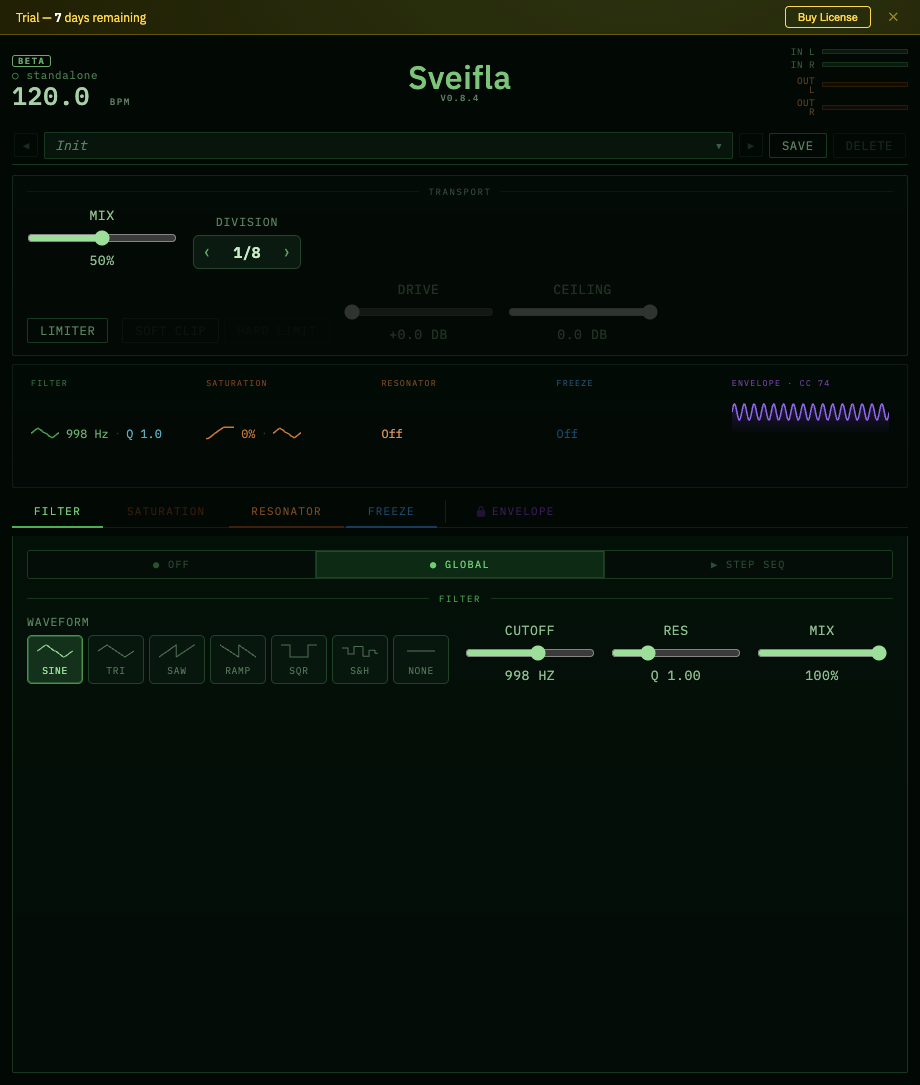
The main window: status and tempo, preset bar, transport, overview cards, reorderable module tabs, and the active module panel.
Header
- Connection status confirms that the interface is connected to the plug-in engine.
- BPM shows the tempo received from the host.
- In/Out meters show stereo input and output activity.
- Size offers 50%, 65%, 80%, and 100% window scales inside the plug-in. Sveifla initially chooses the largest size that fits the display.
Preset bar
Use the arrows to move through saved presets, click the preset name to browse, and use Save, Save As, and Delete to manage your own sounds. See Presets for details.
Transport panel
- Mix is the plug-in's final dry/wet balance.
- Division sets the tempo-synced step length shared by the Filter, Drive, Freeze, and Resonator sequencers. Click the arrows, scroll over the value, or drag vertically.
- Limiter protects the final output and is always last in the signal path.
Available divisions run from 1/1 to 1/32T, including straight, dotted, and triplet values.
Overview cards
The colored cards summarize Filter, Saturation, Resonator, Freeze, and Envelope activity. Click a card or its matching tab to open the module.
Signal flow and module order
The four audio modules can be reordered. Drag their tabs or overview cards left or right to change the processing order:
Audio input
    │
    ├─ Filter ─ Saturation ─ Resonator ─ Freeze   ← drag to reorder
    │
    ├─ Global Mix
    ├─ Limiter                                  ← always last
    └─ Audio output

Envelope ──► any enabled internal target
         └─► MIDI CC output
Order changes the sound. Filtering before distortion keeps the distortion focused; filtering afterward can tame new harmonics. Freezing before a resonator excites it with repeating grains, while freezing after it captures the resonator's tail.
The Limiter is intentionally outside the sortable chain so it always processes the final result.
Working with sequencers
Filter, Saturation, Resonator, Freeze, and Envelope each offer a 16-step pattern editor. Their values differ, but the layout, loop-length controls, playhead, merge markers, and creative tools use the same conventions.
Modes
- Off bypasses the module.
- Global uses one set of controls continuously.
- Seq / Step Seq / Drive Seq enables the module's pattern.
Only one of these modes is active within a module at a time.
Step controls
- Drag a vertical fader to set the step value.
- In the Filter, Drive, and Envelope grids, click a waveform button to cycle through Sine, Triangle, Saw, Ramp, Square, and S&H.
- Click a step number to make it the final step in the loop. Loops can contain 1–16 steps.
- The highlighted playhead shows the currently playing step.
Merge
Turn on the merge marker between adjacent steps to create a longer phrase. The first step becomes the group leader and follower controls are dimmed because the leader owns the group.
In the Filter, Drive, and Envelope sequencers, the leader's waveform sweeps continuously across the entire merged duration. In Freeze and Resonator, merged followers hold and inherit the leader's settings instead.
This is useful for slow sweeps that span several rhythmic divisions without changing the main clock.
Smooth, Slew, and Swing
- Smooth softens transitions in the audio-module sequencers.
- Slew glides the Envelope output between values.
- Swing shuffles alternating Envelope steps while keeping each two-step pair the same total length.
Randomize
Choose a strength, then click the dice button:
- S — Soft: related, restrained changes.
- M — Medium: a balance of continuity and surprise.
- H — Hard: wide, unpredictable changes.
Randomize is an excellent way to create a starting point. Save a copy before using it on a pattern you want to keep.
Euclidean rhythm
Enable EUCLID to distribute accents as evenly as possible across the current loop.
- K controls the number of active beats.
- R rotates the pattern without changing its spacing.
- The dot preview shows the resulting rhythm.
Inactive Euclidean pulses mask the module's main step value to zero. The resulting step values are saved with the preset, but the generator's EUCLID, K, and R control state is not recalled as a separate preset setting.
Filter
The Filter is a resonant low-pass effect. It is useful for tone shaping, rhythmic sweeps, and movement before or after the other processors.
Global mode
- Waveform selects the modulation shape; choose None to hold the base value without LFO movement.
- Cutoff runs from 20 Hz to 20 kHz.
- Res controls filter resonance from broad and gentle to narrow and pronounced.
- Mix blends filtered and unfiltered sound within the module.
Step sequencer
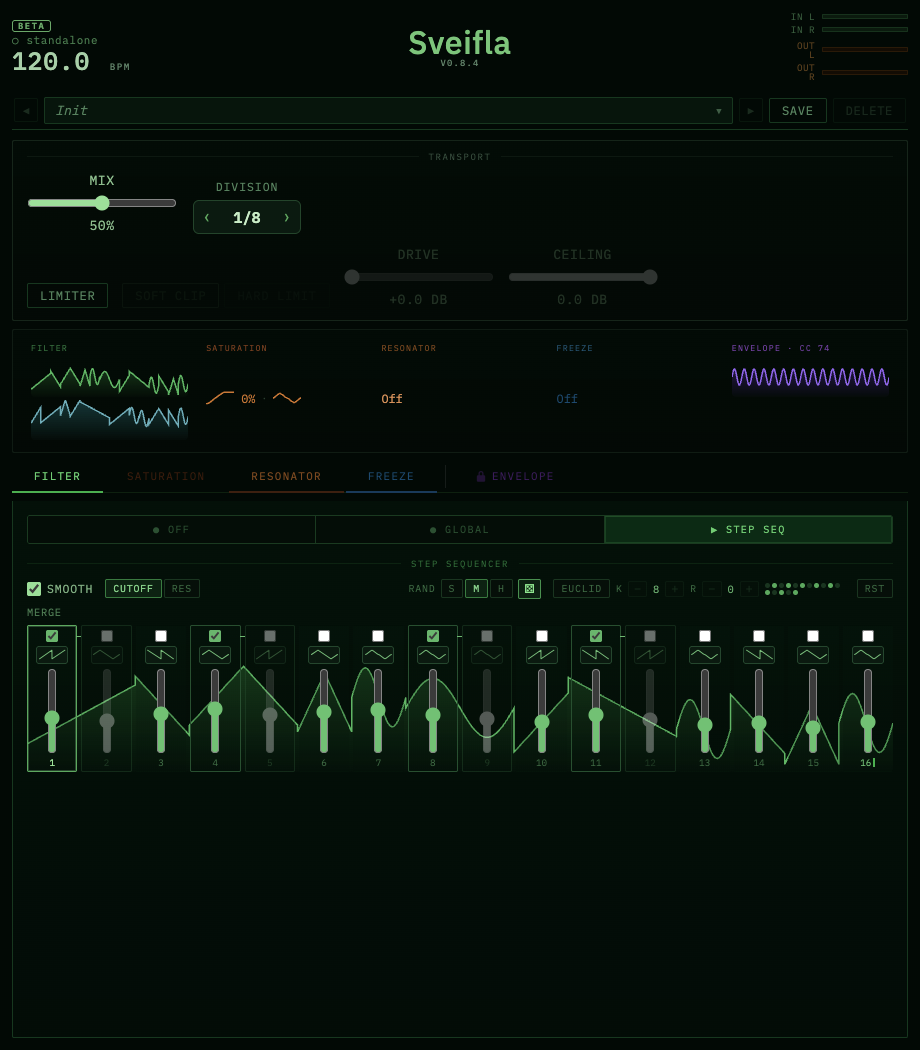
The Filter sequencer with a randomized pattern. Switch between Cutoff and Resonance editing, merge steps for longer curves, or generate Euclidean accents.
Each step stores a Cutoff value and a Resonance value. Use Cutoff and Res above the grid to choose which lane you are editing. The waveform creates motion around the step's base value; cutoff modulation can travel up to two octaves above or below it.
The Cutoff and Resonance lanes share one playhead and loop length, so they always move together.
Saturation
Saturation adds harmonics, compression, and clipping character. Start with a low Drive amount and compare the four types at matched output level.
Saturation types
- Sat: rounded, smooth saturation.
- OD: a denser soft-knee overdrive.
- Dist: firmer hard-clipped distortion.
- Fuzz: aggressive exponential fuzz.
Global mode
- Drive controls how hard the signal hits the selected algorithm.
- Waveform adds cyclic movement to the drive amount.
- Mix blends processed and unprocessed sound within the module.
- Soft Clip provides additional clipping at the saturation stage.
- Output trims the saturation section after drive.
The Output range is −24 to +6 dB.
Drive sequencer
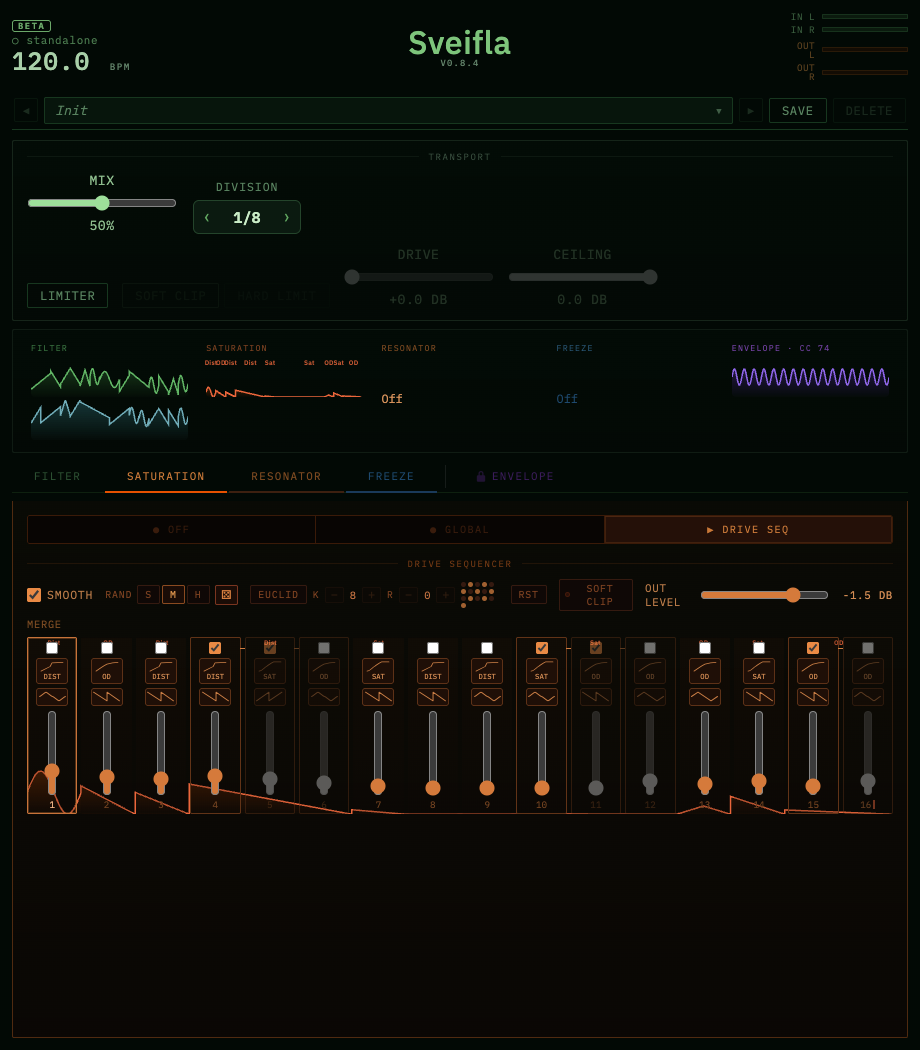
The Drive sequencer can change drive amount, waveform, and saturation type per step.
Each leader step stores its own Drive, waveform, and saturation type. When both the Filter and Drive sequencers are active, their playheads are hard-synchronized, making layered rhythmic patterns repeat reliably.
Resonator
The Resonator turns incoming sound into pitched, ringing, and physical-modeling textures.
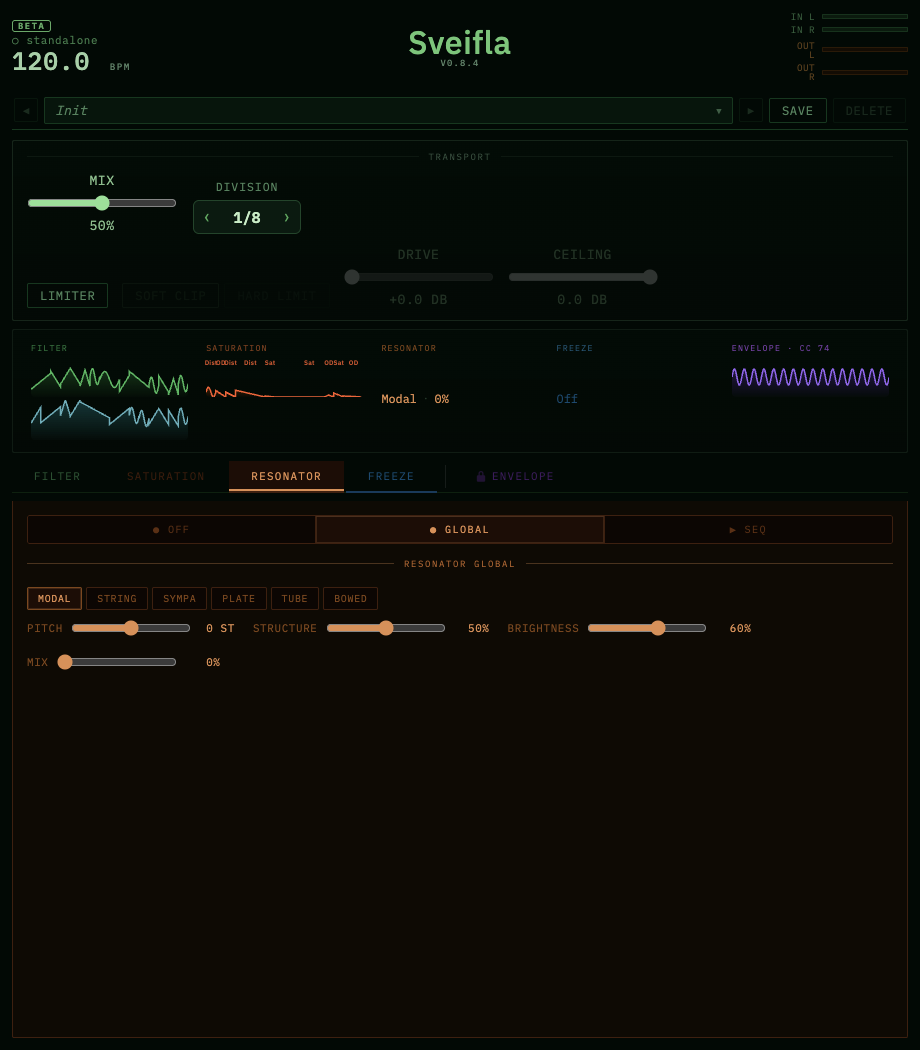
Global Resonator mode. Choose a model, then shape its pitch, structure, brightness, and dry/wet mix.
Resonator modes
- Modal: bell, glass, and tuned-percussion colors.
- String: plucked-string and harpsichord-like responses.
- Sympa: multiple sympathetic resonances, useful for sitar- or dulcimer-like color.
- Plate: metallic, gong, and sheet-like resonances.
- Tube: pipe, marimba, and hollow-body tones.
- Bowed: sustained, friction-like string textures.
Global controls
- Pitch sets the resonator's tuning.
- Structure changes harmonic relationships or model behavior.
- Brightness controls upper-frequency energy and damping.
- Mix blends the resonated signal with its input.
Resonator sequencer
Each step can store a pitch offset from −24 to +24 semitones, a resonator mode, Structure, Brightness, Mix, and merge state. A merged follower inherits the leader's settings. Use short loops for repeating tuned figures or merged groups for longer held resonant phrases.
Playing tip: Resonators need excitation. Percussion, clicks, plucks, and noisy transients produce clear pitched results. On sustained material, lower Mix and automate or sequence it for definition.
Freeze
Freeze continuously records recent stereo audio, then loops a captured grain and blends it with the live signal. It can create stutters, suspended textures, reverse fragments, and tempo-locked buffers.
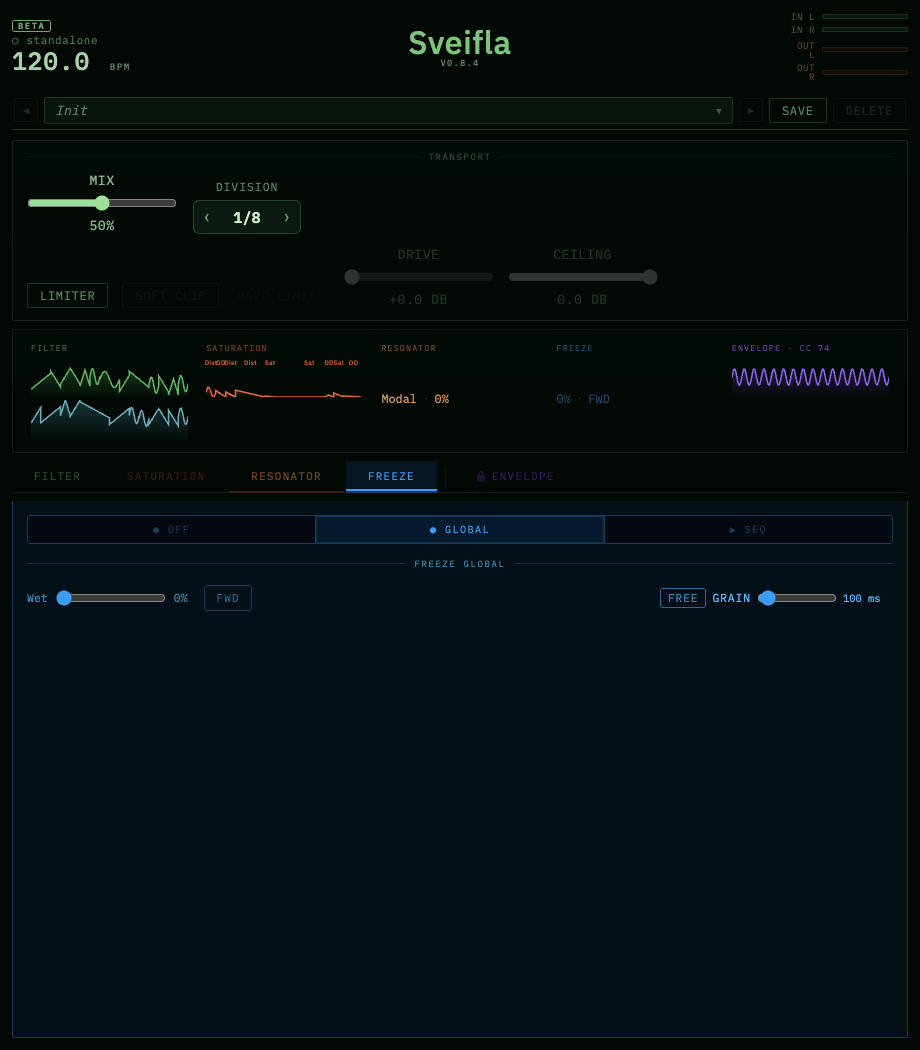
Global Freeze mode with dry/wet, direction, and free/synced grain size.
Global mode
- Dry/Wet controls the frozen blend.
- FWD / REV selects forward or reverse grain playback.
- Free sets grain size in milliseconds.
- Sync locks grain duration to a musical division at the host tempo.
Freeze sequencer
Each step stores a Wet amount, merge state, and forward/reverse direction. A merged follower inherits the leader's settings. Low Wet values add subtle repeats; high values replace more of the live signal with the captured grain.
The freeze buffer holds up to approximately four seconds of recent stereo audio. A new or silent instance needs incoming audio before it has useful material to freeze.
Texture tip: Put Freeze before Resonator for repeating excitation, or after Resonator to capture a ringing tail. Then try reverse playback and merged steps.
Envelope
Envelope is Sveifla's shared modulation source. It can drive several internal destinations at once and can also emit MIDI CC for another plug-in.
Targets
Enable any combination of these nine destinations:
- Filter Cutoff
- Filter Resonance
- Filter Mix
- Saturation Drive
- Saturation Mix
- Freeze Dry/Wet
- Resonator Mix
- Resonator Structure
- Resonator Brightness
When you enable a target, Sveifla activates the required module in Global mode and disables that module's competing sequencer. This gives the Envelope a clear destination to control.
Each active target exposes:
- Depth: how strongly the Envelope replaces the target's own value. At 100%, the Envelope fully controls it; lower settings preserve more of the base value.
- INV: reverses the modulation direction for that target.
Using one Envelope for several targets is an easy way to make coordinated patches—for example, opening Filter Cutoff while reducing Saturation Mix.
Envelope Sequencer
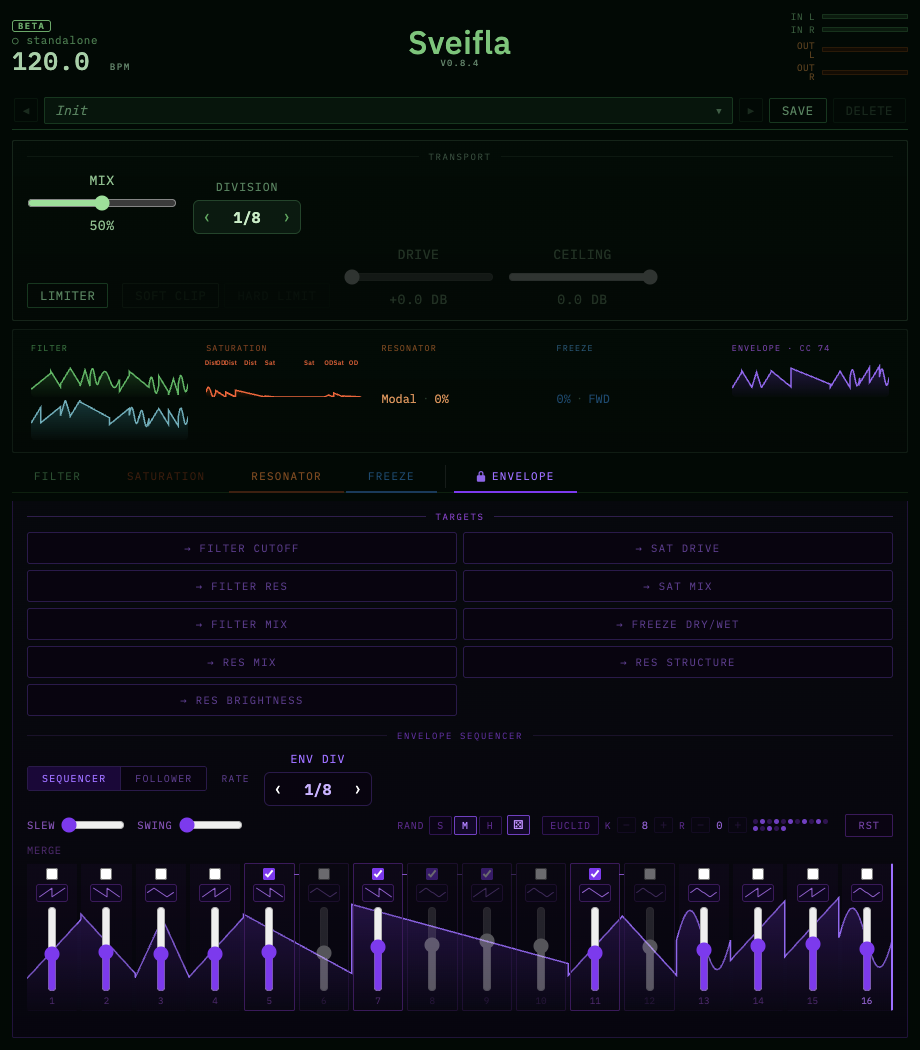
The Envelope Sequencer can address multiple targets, use its own rate, and create long shapes with merge, Slew, and Swing.
The 16-step Envelope Sequencer always loops. Each step stores a base value and waveform. It has its own division, independent of the primary Filter clock.
- Slew glides the outgoing modulation.
- Swing offsets alternating step timing.
- Merge extends one continuous waveform across several steps.
Envelope Follower
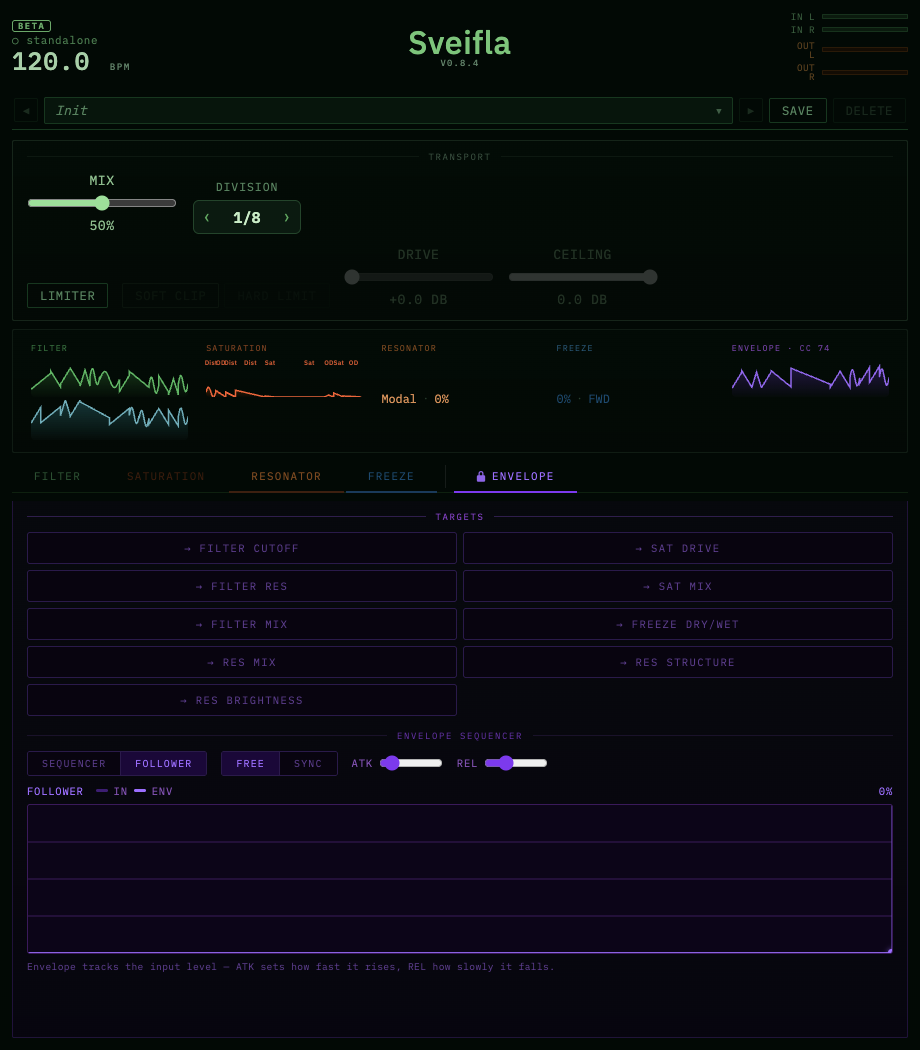
Follower mode replaces the step grid with a live input/envelope trace and attack/release controls.
Follower mode derives modulation from the incoming audio level. It continues working while the DAW transport is stopped.
- In Free mode, ATK and REL are set in milliseconds. Attack covers roughly 1–500 ms and Release roughly 5–1000 ms.
- In Sync mode, Attack and Release each use their own tempo-synced note value.
- The filled scope area represents input level; the bright line shows the smoothed Envelope that is actually reaching the targets.
Fast attack follows transients closely. Slower attack ignores brief peaks and creates swells. Fast release produces tight rhythmic movement; slower release makes modulation linger.
MIDI output and export
Use Export MIDI in Sequencer source mode to save the current Envelope curve as a Standard MIDI File. Choose a filename and import the resulting .mid file into the DAW like any other MIDI clip.
Current-version note: MIDI export uses the main Transport Division when calculating note length, even when ENV DIV is different.
While the Envelope is active, Sveifla also emits MIDI CC 74 on channel 1. Some hosts can route this to another plug-in, but the current interface does not expose CC selection or MIDI Map controls. Treat live cross-plug-in routing as host-dependent; the supported, visible workflow is Export MIDI.
Limiter and output level
The Limiter is a zero-latency safety stage after the global Mix. Because it sits after that blend, it can still affect the dry signal when global Mix is at 0%.
- Soft Clip rounds peaks using a smooth curve.
- Hard Limit clamps the signal at the selected ceiling.
- Drive adds up to +12 dB before limiting.
- Ceiling sets the maximum output level; 0 dBFS is the highest setting.
The limiter has no lookahead. Hard Limit catches sample peaks, while Soft Clip is often more musical on buses and sound-design patches. Neither replaces sensible gain staging: watch the output meters and reduce upstream Mix or Drive when necessary.
Presets
Sveifla presets store the complete plug-in state, including parameters, sequencer patterns and lengths, merge states, Envelope target settings, and module order.
Load and browse
- Click the preset name to open the list.
- Use the left/right arrows to load the previous or next saved preset.
- If a loaded preset has unsaved changes, Sveifla normally asks before replacing it.
Save
- Save opens a name field prefilled with the current or most recent name. Saving to the same name overwrites that preset.
- Save As creates another named preset.
- Press Enter or click the check mark to confirm; press Escape or click the cross to cancel.
- Names can contain letters, numbers, spaces, underscores, and hyphens, up to 64 characters.
Delete
Click Delete twice within three seconds. This protects against accidental removal.
On macOS, user presets are stored in:
~/Library/Application Support/Sveifla/Presets/
DAW projects also restore the plug-in state saved with the session, even if you did not create a user preset.
Save-safe habit: Save before browsing to another preset. Some mode and smoothing toggles may not display Unsaved * in the current version even though the sound has changed.
Trial and activation
Sveifla includes a seven-day trial with normal audio operation. The banner at the top shows the number of days remaining and can be dismissed for the current window. When the trial expires, the activation panel blocks the interface and output is silenced until a valid key is entered.
- Click Buy License to open the purchase page.
- Keep the license key delivered after purchase.
- When the activation panel is shown, paste the complete key in the form
XXXX-XXXX-XXXX-XXXX-XXXX-XXXX-XXXX-XXXX. - Click Activate or press Enter.
Key verification is performed locally. Successful activation is permanent on that machine, and routine launches do not require an internet connection.
If a key is rejected, paste it again without extra spaces and verify every group. The activation panel also shows the current Machine ID for support cases.
Troubleshooting
Sveifla does not appear in the DAW
- Confirm that the correct format was installed for the host.
- Restart the DAW and run a full plug-in rescan.
- On macOS, use AU for Audio Unit-only hosts and VST3 where supported.
- On Windows, confirm that the DAW scans the shared VST3 folder.
The sequencer does not move
- Start the host transport.
- Confirm that the module is in its sequencer mode, not Global or Off.
- Confirm that the host is providing tempo and transport information.
- Use Envelope Follower when you need modulation while transport is stopped.
There is no frozen sound
- Play audio through Sveifla so the circular buffer has material to capture.
- Raise Freeze Dry/Wet.
- Try a longer grain.
- Check that Freeze is not Off and that another Envelope target has not switched it to a different mode.
The resonator is weak or silent
- Raise Resonator Mix.
- Feed it transient-rich audio.
- Try Modal or Plate first, then adjust Pitch and Brightness.
- Check module order; a nearly closed Filter before the Resonator may remove its excitation.
The output is too loud
- Reduce Saturation Drive or its Output trim.
- Lower Resonator or Freeze Mix.
- Lower the global Mix if you want more dry signal.
- Enable the Limiter and lower its Ceiling.
MIDI CC does not reach another plug-in
- Confirm that the Envelope is active. The current version emits CC 74 on channel 1.
- Check the DAW's MIDI send/input routing.
- Remember that the current UI has no CC selection or Map controls.
- Use Export MIDI when the host cannot route live effect MIDI reliably.
A preset changed unexpectedly
Edits clear the current preset name and show Unsaved *. Save or Save As before loading another preset. If you proceed through the warning, the unsaved edits are discarded.
Quick reference
| Area | Main use | Key controls |
|---|---|---|
| Transport | Overall balance and clock | Mix, Division |
| Filter | Rhythmic low-pass movement | Cutoff, Res, Mix, waveform |
| Saturation | Harmonics and clipping | Type, Drive, Mix, Output |
| Resonator | Pitched physical-modeling color | Mode, Pitch, Structure, Brightness, Mix |
| Freeze | Looping and reversing captured audio | Wet, direction, grain size |
| Envelope | Shared internal modulation and MIDI CC | Targets, Depth, INV, Sequencer/Follower |
| Limiter | Final output protection | Type, Drive, Ceiling |
| Presets | Recall complete sounds | Browse, Save, Save As, Delete |
A reliable patch-building order
- Set the global Mix and basic module order.
- Create one strong Global sound in each module you need.
- Turn one module into a short sequenced pattern.
- Add Envelope movement to one or two destinations.
- Use Randomize or Euclidean tools to create variation.
- Gain-stage the result and add the Limiter only if needed.
- Save the preset before experimenting further.
© 2026 Deetta Labs. Sveifla and this documentation may be updated as the product evolves.